I turned a Sonoff NSPanel Pro 120 into a living room controller where the room itself is the UI
A wall panel that shows a 3D render of my living room: tap the lamp, a shade or the TV in the picture to control it. It's also the doorbell intercom and a local voice assistant.
The panel on my living room wall is a Sonoff NSPanel Pro 120. Out of the box it’s a small Android 8.1 tablet running the eWeLink app. Now it shows a 3D render of the actual room: I tap the lamp, the window or the TV in the picture and a control bubble opens right there. The same panel is also my doorbell intercom, a local voice assistant (at home it answers to “Majordome”, French for butler; here I call it Butler) and a Bluetooth proxy for Home Assistant.
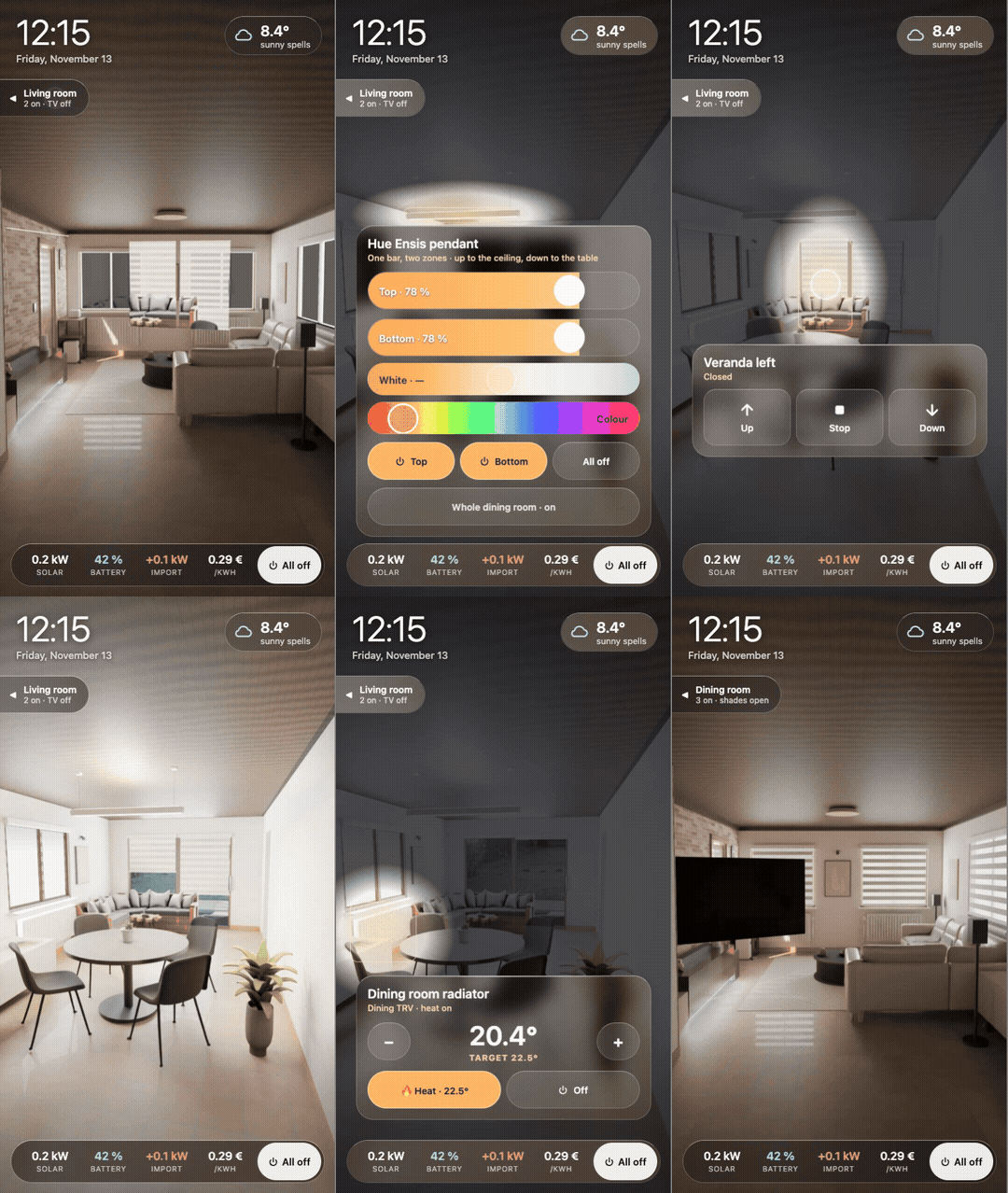
Browser demo, states simulated. Switching to the dining room: Ensis pendant (top and bottom, colour, white), both veranda shades, the radiator, then back to the living room. Shades sped up about 9×.
At home the panel runs in French; for this write-up I translated the labels to English. The first half shows what it’s like to use. The second half is how I built it, in order, including what broke along the way and what still needs looking after. Some parts use public tools; the kiosk app, the gateway and the pages are my own code, which I describe here but haven’t published.
About the GIFs. They all come from the real living room page opened in a desktop browser on my LAN, with every action blocked and the states simulated inside the page. Nothing in my house moved while I recorded them. The white dot is where I tap. Shades and the TV arm are sped up, and each caption says by how much. In most of them the window camera feeds are swapped for a plain image for privacy; the rain and intercom GIFs use real camera footage. I don’t have a clean video from the panel itself (screenrecord produces broken files on this build and the DevTools screencast runs at about 7 fps), so the GIFs show what the page does, not how fast the PX30 does it.
The room is the interface
The background is a Blender Cycles render of my actual living room, made from the 3D model of the ground floor, portrait, 16 mm lens. There’s a day and a night version, and two scenes (living room and dining room) you switch with the pill at the top left.
Tap an object and the room dims around it while a frosted-glass bubble opens in place. The PX30 can’t blur the background live, so the glass is a pre-blurred image. The bubble closes by itself after about 45 s without a touch.
Lights
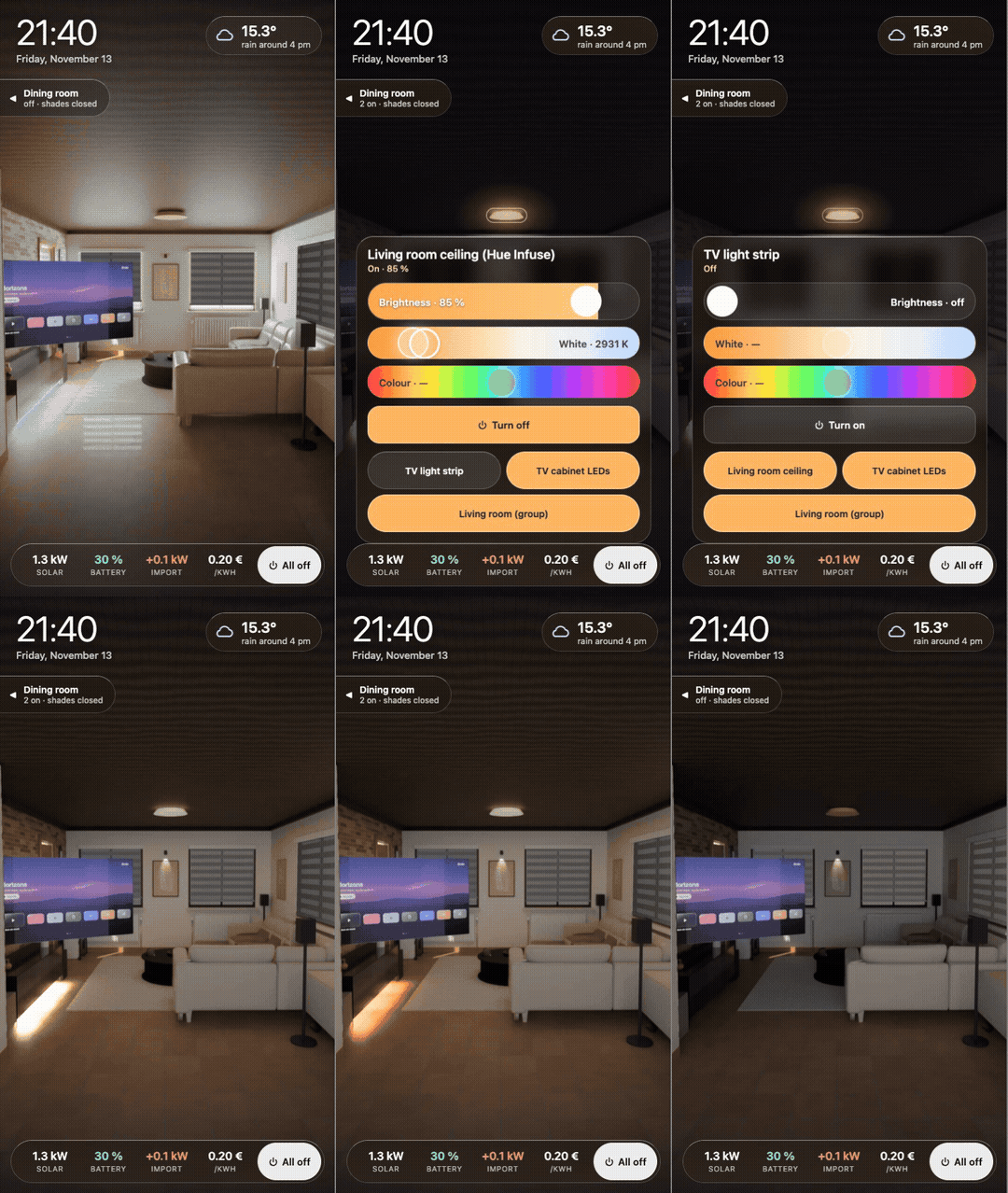
Browser demo, states simulated, real time. Night mode. Ceiling: brightness and white. TV strip: on and colour. Cabinet LEDs: on and colour. Then All off.
Hue Infuse ceiling light, Hue Play Gradient strip behind the TV, cabinet LEDs, and a two-zone Ensis pendant in the dining room. The bubble has a brightness slider, a white track from 2200 to 6500 K, a colour track, on/off, and shortcuts to the other lights. Each light is also a light layer rendered in Blender and tinted with the real colour, so the room in the picture lights up the way the real one does.
Shades
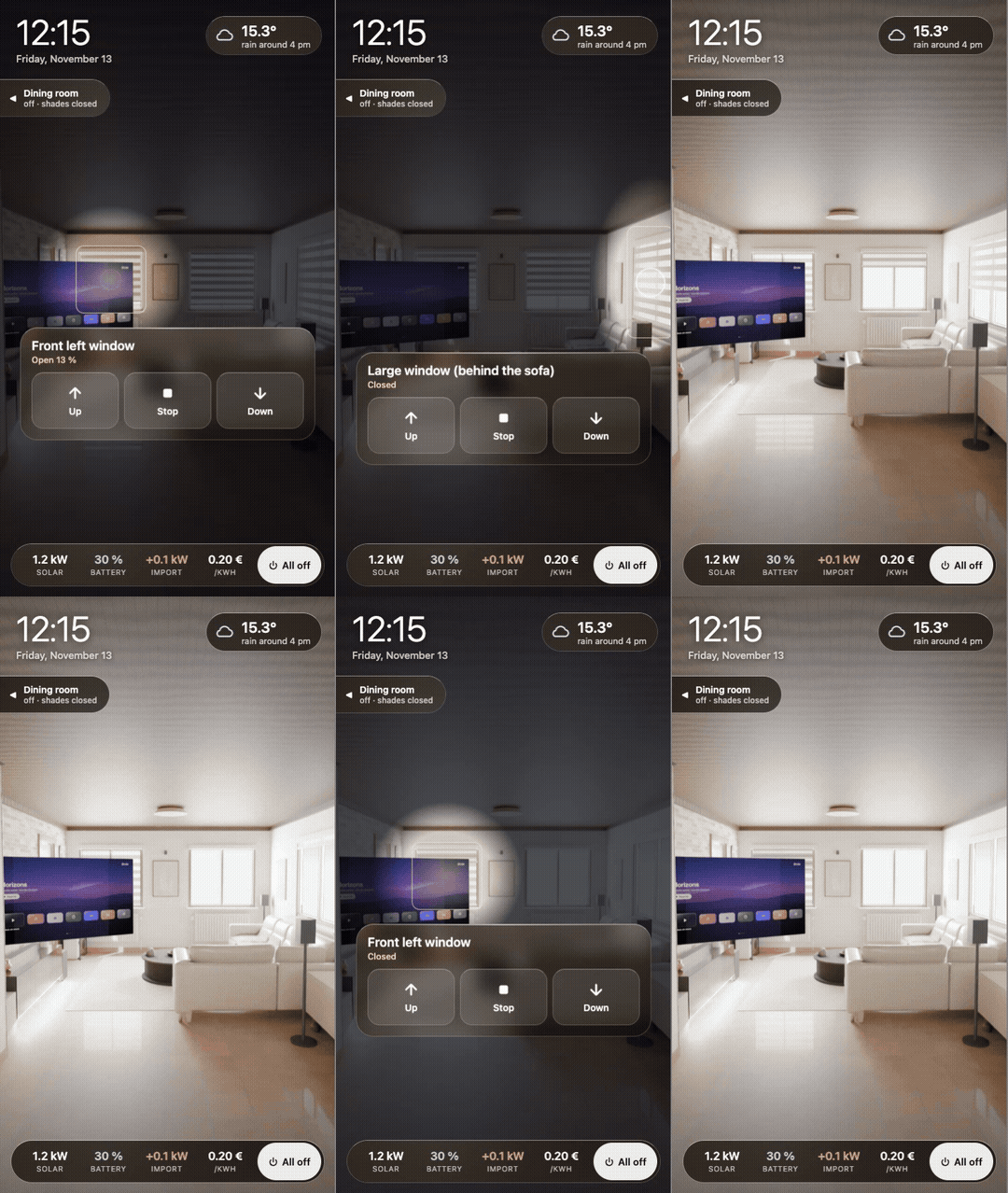
Browser demo, states simulated, shade movement sped up about 9×. All three living room shades go up and the room brightens. Then one comes down and stops halfway.
Six zebra shades (three per room) and the awning. The fabric in the picture follows the real position, and the room’s lighting follows how open they are. I timed a full run at 70 s or so on each motor with a stopwatch, and the animation uses those times. The bubble has Up, Stop and Down.
TV and the motorised arm
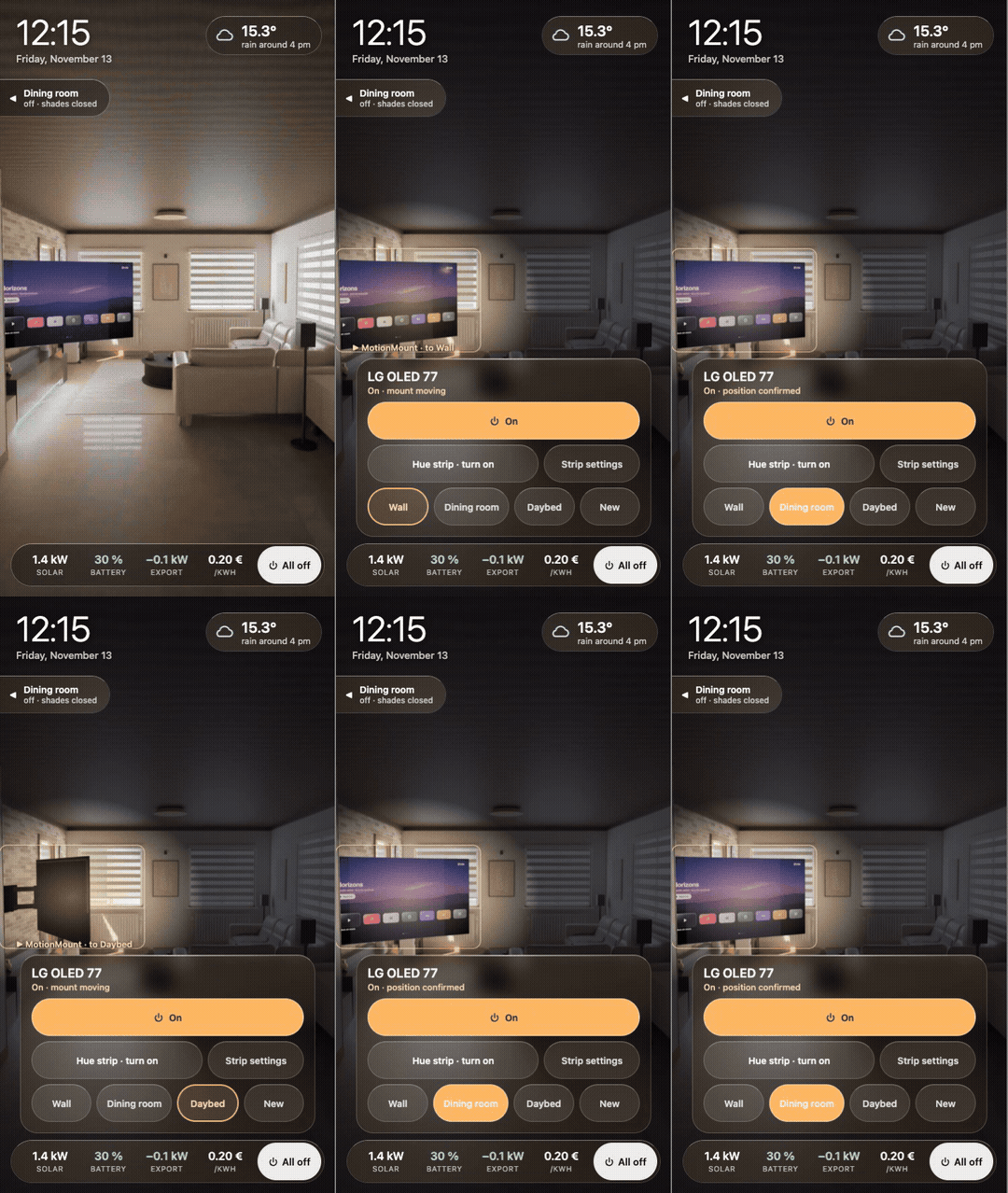
Browser demo, states simulated, arm movement sped up about 3×. Tap the TV to turn it on, Hue strip on, then the arm swings to Wall, Daybed and back to Dining room. Under the title: command sent, moving, checking position, position confirmed. In the demo those steps are scripted; on the real panel they come from the mount.
Tapping the LG OLED 77 turns it on if it’s off. When it’s off, webOS ignores media_player.turn_on, so the Wake on LAN integration and an automation on webostv.turn_on handle it. The bubble also has the Hue strip and the four MotionMount presets. In the picture, the TV moves with the real arm: 96 rendered frames per path, decoded ahead of time for the paths reachable from the current position, and started when the position changes in HA.
The line under the title follows the real mount: “command sent”, “moving”, “checking position”, then “position confirmed” once the mount has reported where it stopped, or “position not reached” if it ended somewhere else. Until this week the panel only showed the last command sent, and I caught HA saying “Dining Room” while the TV was flat against the wall. In HA’s history from my tests, the arm started moving 5 to 7 s after the button press (Bluetooth connection), and “position confirmed” came 35 to 37 s after the press in three runs out of four; once it took 79 s. The Bluetooth side is in the build section.
Sound and heating
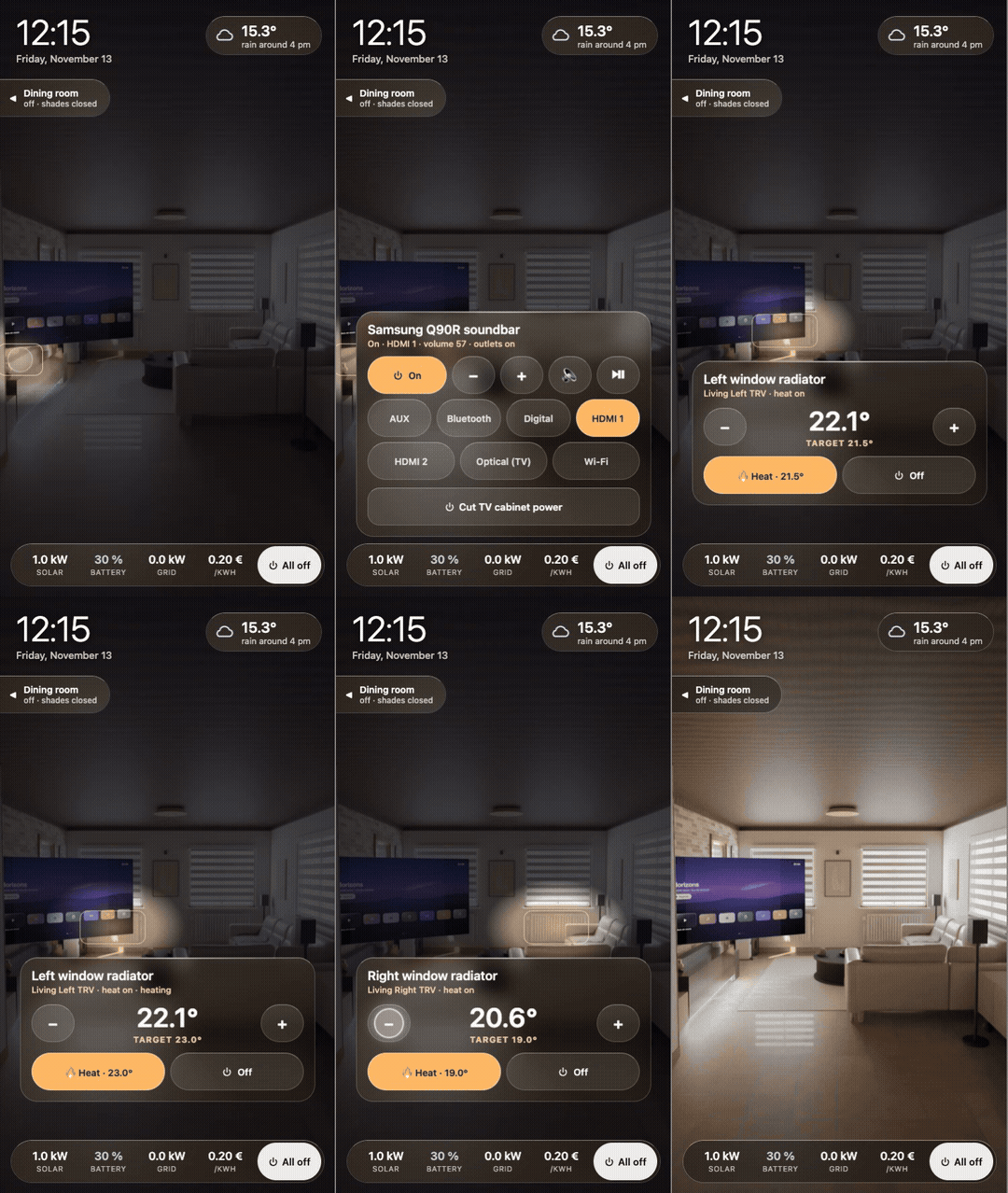
Browser demo, states simulated, real time. Soundbar: on, volume up, HDMI 1, mute and unmute. Then both living room radiators: heat on and setpoint.
Tap the soundbar or either satellite speaker for the Samsung Q90R: power, volume (capped at 60 %, the + button included), mute, play/pause, sources, and a cut-off for the TV cabinet plugs. Tap a radiator for its valve: current temperature, setpoint in 0.5 °C steps, heat or off. The dining room radiator works the same way.
The cat corner
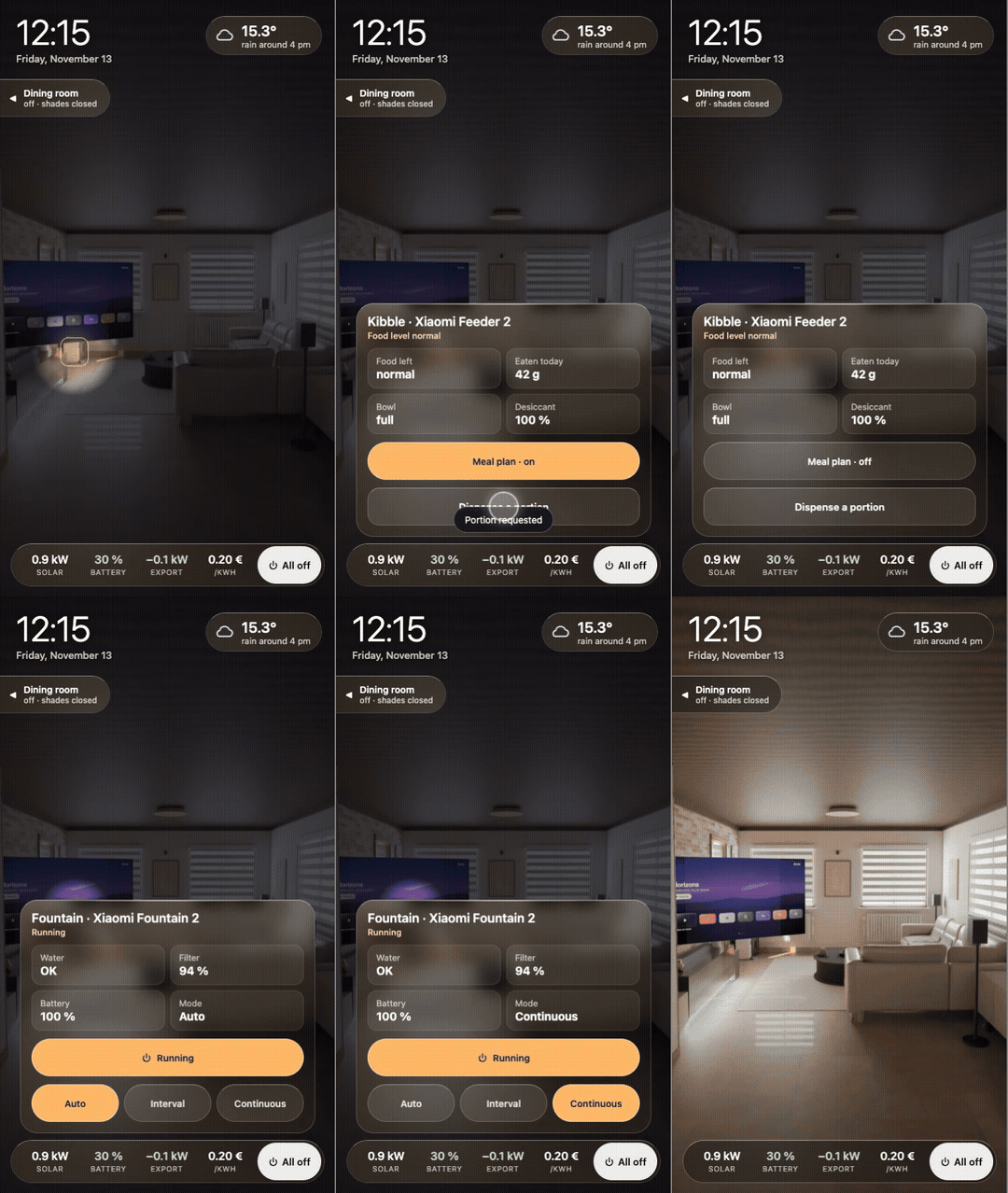
Browser demo, states simulated (levels set to full for the demo), real time. Feeder: two taps to dispense a portion, meal plan off and on. Fountain: Auto, Interval, Continuous.
Xiaomi Feeder 2 (food left, eaten today, bowl, desiccant, meal plan) and Xiaomi Fountain 2 (water, filter, battery, mode). “Dispense a portion” needs a second tap within 5 s, and the gateway allows one portion per minute so nobody (human or cat) can spam it.
Windows and rain
The windows in the picture show live camera views of what’s actually outside them, refreshed every 15 s and darkened at night. At the top: clock and weather, which says when the weather station actually measures rain. At the bottom: an energy bar (solar, battery, grid, price per kWh) and an “All off” button.
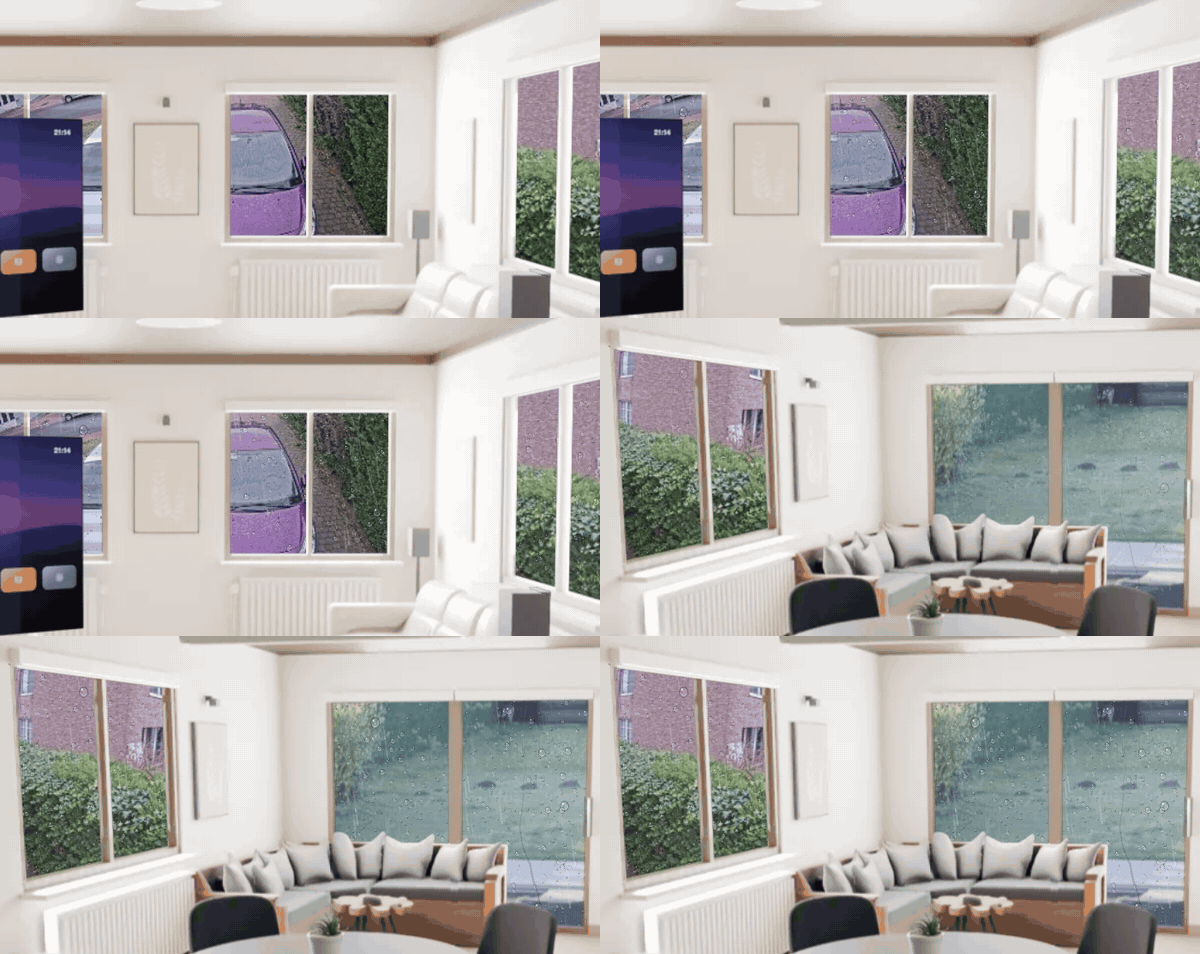
Browser demo of the real page with the real night camera views, rain sensor switched on by hand. Living room first (the TV hides the left window), then the dining room.
When my weather station (a Shelly WS90) says it’s actually raining, the panes get wet: drops of every size, each with a highlight and a small arc of refracted light, a few trails where drops ran down, and fine rain falling outside. It fades in over 1.5 s. It sits behind the room render and the shades, so it only shows in the glass, a closed shade hides it, and you can still read the camera view through it.
It’s two tileable PNG textures, about 150 KB together, that I generated once with a small canvas script in a headless browser: seeded random drops, tapered trails, slightly blurred streaks at three depths. Each window gets its own random offset into the textures and is clipped to its outline, using the four corners per window from the same file the camera views use. I tried animating the falling rain with a plain CSS transform and the panel went from 27 % to 81 % CPU, so the rain stays still.
The doorbell intercom
When someone rings, Home Assistant tells the gateway, which pushes the event down the SSE stream that’s already open. The page calls nskiosk://ring and the kiosk shows the intercom layer, which is kept loaded in the background. That takes about 40 ms. If the camera saw someone before they rang, the video is already live when it opens.
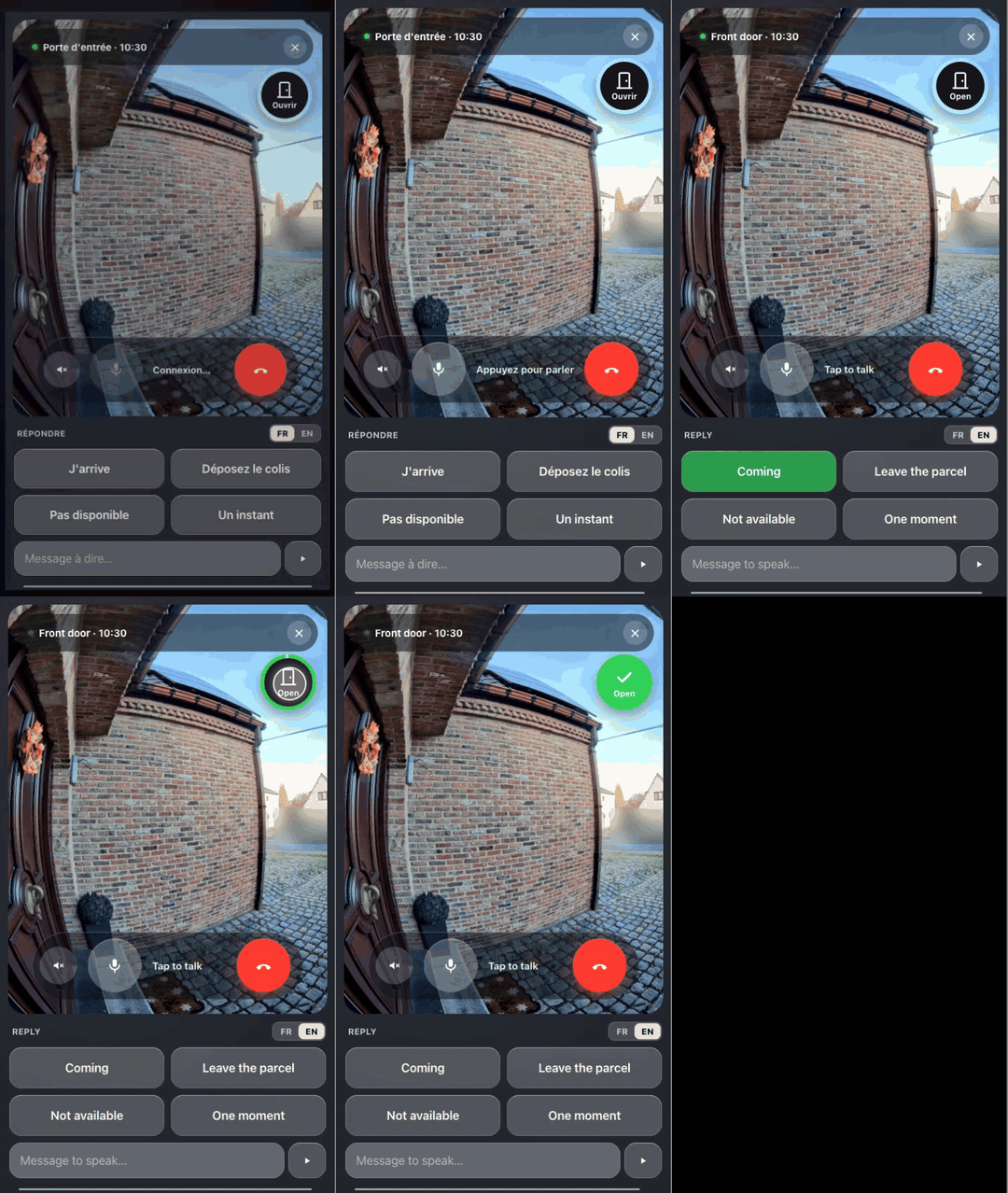
The real intercom page in a desktop browser, showing 10 s recorded by the real doorbell camera at 10:30 on 13 November (nobody at the door, the parked cars blurred, the page clock set to the time of the recording). The ring, the spoken reply and the door are simulated inside the page: nothing was said at the door and the lock didn’t move. Every ring starts in French, so I tap EN first.
- Video: WebRTC straight from go2rtc, re-encoded to H.264 720×960 at 700 kbps with a keyframe every 0.5 to 1 s. H.265 doesn’t play over WebRTC here, and above 700 kbps the 2.4 GHz Wi-Fi drops packets. Cold start is 1.1 to 1.5 s on the Pro 120.
- Talk: push-to-talk through go2rtc’s audio backchannel to the doorbell.
- Canned replies in French or English: “Coming”, “Leave the parcel”, “Not available”, “One moment”. You can also type a free message and tap Speak. While you type, the voice is already generated in the background after a 600 ms pause, so it plays at once. The voice is generated locally and sent straight to the doorbell’s speaker; if that fails, it goes through the doorbell’s HA media player, and Piper is the last resort.
- Open the door: one-second long press on the round button. On panels outside the hallway, the gateway only accepts it for 5 minutes after a real ring (a ring older than 10 s doesn’t count).
Butler, the voice assistant
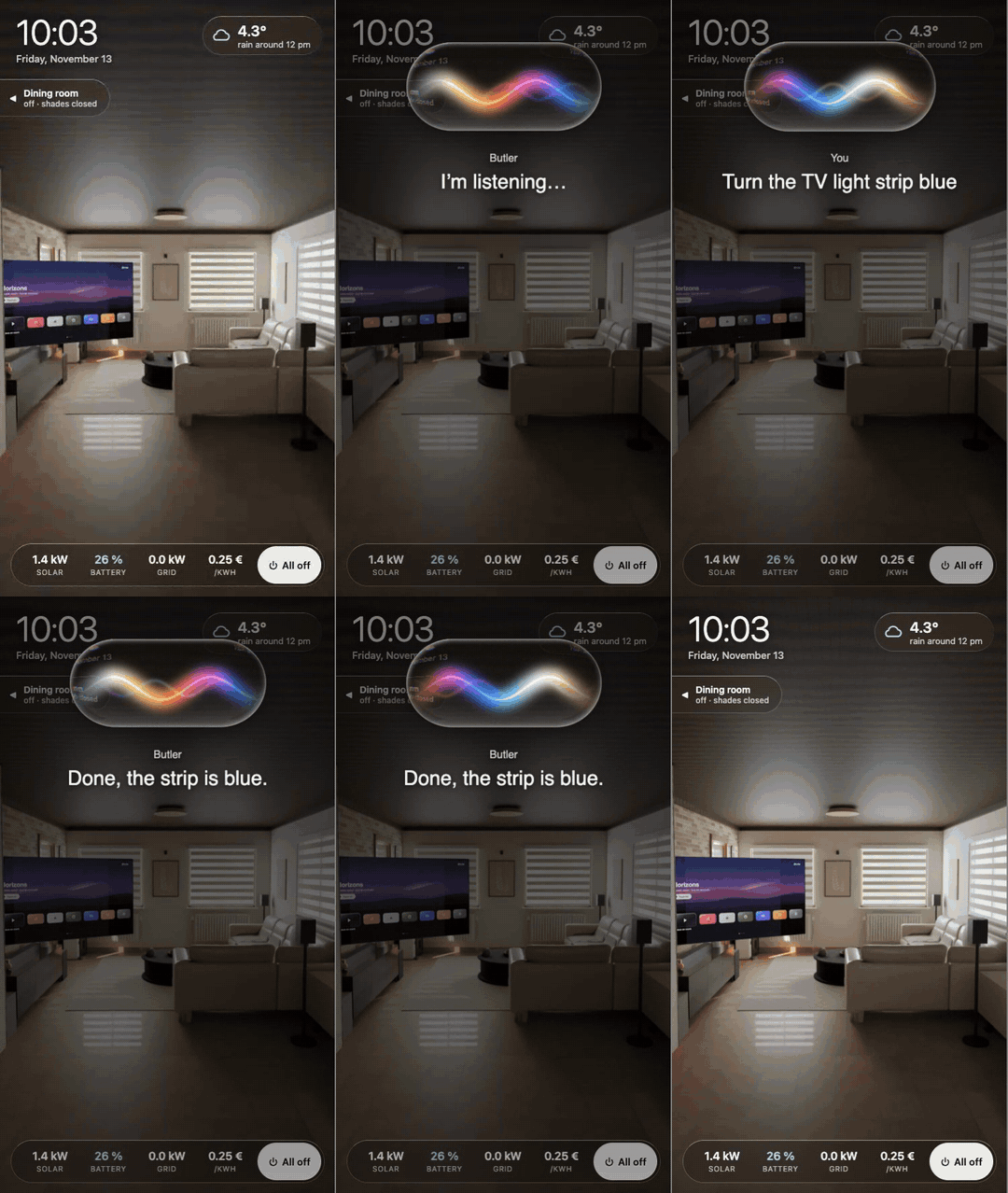
The richer “liquid glass” voice bubble, rendered in a desktop browser over a capture of the living room: listening, what it heard, the answer. The physical living room panel doesn’t show this version; it uses a lighter one, described below.
The idle intercom page keeps the mic open and streams 16 kHz PCM in 100 ms frames to the gateway over a WebSocket. I had to request a raw mic (echoCancellation, noiseSuppression and autoGainControl set to false); with the default processing the WebView sent pure silence.
- Wake word: a custom openWakeWord model trained for “Majordome”, running in HA. The gateway double-checks: Whisper re-reads the clip and the voice level is compared to the background noise. If several panels hear it, another panel takes over when its voice-to-noise ratio is more than twice as good and its level 1.5× higher. I dropped the stock “Hey Jarvis” model, which struggled with French accents.
- False wakes were a real problem, and this week I tightened that second check. I evaluated it with a small offline replay of 124 accepted wake-ups from 26 October to 13 November. Of the 64 where Whisper didn’t read “Majordome” back, the new rule keeps the 5 genuine ones and still lets 2 of the 58 false ones through. It’s a small sample replayed after the fact, so it says nothing about how often a real “Majordome” gets missed day to day. In its first hour and a half live, the new rule turned down 15 wakes (TV and conversation, mostly empty re-reads) and nobody had said the word yet, so the accepting side is still untested in real use.
- The mic stays muted until the last sentence of an answer has played (with a 90 s safety timeout), so it doesn’t hear itself. The logic is in place; I haven’t tested it by voice yet.
- End of speech: detected by the gateway (webrtcvad) after 0.9 s of silence, or 1.8 s once I’ve spoken for 2 s or more; 30 s max.
- Speech to text: Whisper large-v3-turbo on the GPU, exposed to HA through a Wyoming server.
- Understanding: simple commands are handled by Assist without any AI; HA’s built-in agent answers “what time is it” in about 10 ms over HTTP. Everything else goes to a local LLM agent (Qwen 27B on an RTX 5090, a lighter model when that PC sleeps) with tools: web search through SearXNG, directions, reminders, announcements, weather, cameras, music. The tile devices are exposed to Assist with aliases.
- Voice: Kyutai TTS with a butler voice. Audio goes to Web Audio on the panel as PCM, one sentence at a time. There is no fallback yet: speech recognition and the voice both run on one GPU box, and if it is down, voice is down.
How long it takes. The gateway logs when it decided I’d stopped, how long I spoke, the transcription time and when it served the first audio. Subtracting the silence it waited for gives roughly when my last word ended. Four real requests this week have the full chain: 1.7, 1.9, 3.3 and 6.3 s from my last word to the first audio, all answered by the LLM. The 6.3 s one was an 8-second question that needed 1.9 s of transcription and a long answer. That’s four samples, and it doesn’t include the mic transport (about 0.1 s) or the panel starting playback, so take it as a rough idea, not a benchmark. The 0.35 s I quoted in an earlier draft only counted from the end of transcription. After an answer it keeps listening for about 6 s so you can follow up without the wake word. It all works without internet, except web search and streaming music.
The animation in the GIF is a “liquid glass” pill that actually refracts the screen behind it. A pill-shaped normal map is computed once on a canvas and applied to the backdrop with an SVG displacement filter (backdrop-filter: url(#filter) with feDisplacementMap). The iridescent rim comes from three passes, one per colour channel, each displaced slightly differently. Three gradient sine waves slide inside. Everything steps every 50 ms, because 60 fps cost one and a half cores. Even so, the bubble costs 120 to 165% of a core while it’s on screen, and it’s fully removed from rendering when it closes. That version runs on my other panels. On the living room panel, where the 3D page already loads the CPU, the voice UI is a dark veil with what it heard and the answer, with no glass effect.
How I built it
Hardware
- NSPanel Pro 120: Rockchip PX30 (4× Cortex-A35, Mali-G31), 2 GB RAM, Android 8.1, 750×1334 screen (500×889 CSS px), 2.4 GHz Wi-Fi only, Bluetooth, Zigbee radio.
- Home Assistant, plus a small Linux container for the gateway (Python).
- For the intercom: a video doorbell (UniFi Protect G6 Entry in my case) and go2rtc.
- For voice: a PC with a GPU for speech recognition, the LLM and TTS. Optional if plain Assist is enough for you.
- Optional: a 30° tilted wall mount, 3D printed in two parts (matte black PLA).
How it fits together
Panel (kiosk WebView)
   ▲ live states (SSE)            │ actions: POST /api/call
   │                              ▼
Gateway ── HA token + per-room allowlist ──►  Home Assistant
   ▲ always-on mic (16 kHz PCM over WebSocket)
   │
   └─ wake word → Whisper → Assist / local LLM → TTS → panel speaker

Doorbell → Home Assistant → gateway → nskiosk://ring → WebRTC video (go2rtc)
The panel has no Home Assistant account at all. It shows a web page and talks to the gateway, which holds the token and decides what’s allowed.
Step 0: developer mode and ADB
In the eWeLink app, open the panel’s settings and tap the version number about eight times until developer mode shows up, then enable ADB and accept the terms. Start eWeLink at least once on the panel before you mess with it (the root tool’s README says the same).
Sonoff treats enabling ADB as voiding the warranty, and OTA updates stop afterwards. The build is userdebug and su is open to every app with no manager. Keep that in mind for the Bluetooth proxy part.
adb connect <panel-ip>:5555
adb shell dumpsys display
I run the adb server on an always-on Mac with a loop that reconnects the panels every 60 s. Home Assistant reaches it over SSH with a forced command that only allows adb to the panels.
adb on port 5555 has no password, so each panel also gets a few iptables rules for adb, SSH and the Bluetooth proxy port. They accept connections from localhost, my main LAN subnet and the HA host, and refuse the rest of the IoT VLAN. The Mac is the only adb client I’ve seen in practice, but the rules would let any machine on the main LAN in. A reboot clears them, because I deliberately set nothing on the panel at boot; the Mac’s loop notices and puts them back within about 2 minutes.
Step 1: firmware
With OTA gone, I flashed manually with the community root tool (seaky/nspanel_pro_roottool_apk): push the ROM to /storage/emulated/0/system_update.zip, then VERIFY and INSTALL. About five minutes offline. I went from 4.0.12 to 4.9.0.
- Check the resolution with
dumpsys displaybefore flashing: the Pro 86 and Pro 120 report the same device name. - Skip 4.5.1 and 4.5.2, they gave me boot loops.
- The default timezone is Asia/Shanghai. Fix it with
adb shell service call alarm 3 s16 Europe/London(use your own zone).
Step 2: my own kiosk app
The Home Assistant app and the full frontend kept one PX30 core at 100%. Fully Kiosk charges for mic access and adds a watermark. So I wrote a tiny Android app:
- two fullscreen WebViews: the dashboard, and the intercom page kept loaded underneath;
- audio and video autoplay allowed without a gesture;
- mic access granted only to a page served on
http://localhost, becausegetUserMedianeeds a secure context. A small Node relay on the panel forwards that TCP traffic to the gateway; - URL-scheme commands the page can call (
nskiosk://ring,wake,sleep,reload…); - the WebView gets rebuilt if its renderer process dies (
onRenderProcessGone).
adb install -r -g kiosk.apk
adb shell cmd package set-home-activity <package>/.KioskActivity
adb shell dpm set-active-admin <package>/.Admin    # so it can turn the screen off
I also put --disable-gpu-rasterization --num-raster-threads=4 in /data/local/tmp/webview-command-line. Without the first flag, GPU memory leaks until it crashes.
adb install -r resets the home app, so run set-home-activity again after every kiosk update.
Step 3: keeping eWeLink out of the way
The firmware puts eWeLink back as the home app on every boot. It also installed a “cube” update on its own that broke Zigbee. A small watchdog runs every 30 s on the panel and:
- sets the kiosk back as home and force-stops eWeLink;
- shields the Zigbee stack (Termux) from the OOM killer with
oom_score_adj -900; - restarts the kiosk, the relay and the Bluetooth proxy if they died;
- restarts the kiosk if GPU memory goes over 600 MB (150 MB at night).
Decline any Zigbee or “cube” update eWeLink offers you.
Step 4: the gateway
A small Python (aiohttp) server in a container. It holds a Home Assistant long-lived token for a dedicated non-admin user and figures out the room from the panel’s IP.
- States reach the panel over an SSE stream that stays open.
- Actions go through
POST /api/call {entity_id, service, data}. The gateway checks them against an allowlist per room and per tile type, then calls Home Assistant. - The screen reacts immediately and the SSE echo corrects it if needed.
- When the stream reconnects after a drop, the page fetches the full state again instead of keeping stale values. If the gateway loses Home Assistant, the panel shows “Home Assistant unreachable, states frozen” so you don’t trust a dead screen.
- The lock and the garage get extra protection. Rights depend on the room of the panel that calls: the hallway panels can open and lock the door and open and close the garage, the bedroom can only lock and close, the others can’t touch them. Each action is a two-step gesture: the panel first gets a single-use token that lives 8 s and is tied to its IP, then sends the command with it. The one exception is the intercom’s door button, which any panel can use for a few minutes after a real ring.
- Requests coming from other web pages, or addressed to an unknown host name, are refused. That closes the usual CSRF and DNS-rebinding tricks against a LAN service.
What this protects is the API: whatever the page, or a stray app, sends through the gateway is limited to that room’s allowlist. It doesn’t make a compromised panel harmless. These are rooted userdebug builds with su open to every app, the gateway trusts panels by their IP on the IoT VLAN, and adb and SSH are still reachable from my main LAN. Someone who steals or takes over a panel has a Linux box on my network, and I treat it that way. The HA token could also control any entity if it leaked, because HA has no per-entity permissions; the per-room rules live only in the gateway.
Step 5: Bluetooth proxy
I use Ava Pro (knoop7/Ava-Pro). It speaks the ESPHome native API on port 6053 with a Noise key, so Home Assistant sees it as an ESPHome Bluetooth proxy. Add it through discovery: the manual flow without a key times out because Ava won’t answer in plaintext.
For the proxy to show up, enable Bluetooth detection in Ava and run adb shell settings put secure location_mode 3, then restart its service and reload the integration in HA.
A warning: on these panels Ava gets full root, since su is open to everyone, and the proxy part is closed source. I decompiled the APK I run, Ava Pro 0.7.8 (versionCode 78), with jadx in October, and what follows applies to that build only. I found nothing malicious, but I didn’t like some defaults: Microsoft Clarity session replay is on, updates and mods install as root without a signature check, there’s an exported receiver, and a “Fleet” server with a root shell on port 8888 exists (off by default, with a hardcoded default token). Here’s what I turned off with an am broadcast … ACTION_APPLY_SETTINGS:
- Clarity, fleet management, camera, intent launcher;
- auto-updates, screensaver, floating window;
- Ava’s mic (muted), with camera and mic app-ops set to ignore.
In Home Assistant I disabled Ava’s assist_satellite entities and the device isn’t allowed to call services. Keep Ava’s wake mode on VOICE: BUTTON adds a floating mic bubble on top of the kiosk.
It has a cost on a PX30. Measured over 60 s on my three Pro 120s, Ava uses 13 to 16% of one core and about 145 MB of RAM on the two that scan, and 9% on the living room one where scanning is off. For scale, the kiosk and its WebView renderer together use about 65% of a core there. On the living room panel I ended up turning the scan off because the 3D page already keeps the CPU busy; the hallway and office panels cover the room instead. Bluetooth needs a proxy close to the device, otherwise you get GATT error 133. Ava doesn’t come back on its own after a reboot, so the watchdog restarts it, and a small HA automation reloads the proxy if it’s been unavailable for more than 5 minutes.
What I use it for: a Vogel’s MotionMount TV arm, the Bluetooth version. The official integration only covers the Ethernet Pro model, so I wrote a small custom integration from the protocol documented by howm/homebridge-vogels-motionmount (MIT). You write 4 bytes: extension 0 to 100 and rotation −100 to 100, as big-endian int16. Presets are read from the mount itself.
The mount also reports its live position: two characteristics I found by polling all of them during a move filmed by the living room camera (extension and rotation, same int16 format). After each command the integration polls them until the arm stops, which is where the panel’s “checking position” and “position confirmed” come from. I checked one full round trip against the camera. It also rereads the position every 10 minutes, which should catch moves made from Vogel’s own app; I haven’t tested that part. If the mount doesn’t answer within 12 s, the panel says so.
Step 6 (optional): Zigbee router
My panels also act as Zigbee routers for Zigbee2MQTT. Their stack sometimes falls back to the coordinator role on its own, which causes an address conflict and crashes the real coordinator. A small service checks the role every 3 s and puts it back to router. That shortens the problem without removing it: I don’t know why the role flips, and for up to 3 s a panel can still disturb the network. If you don’t need the extra routers, leave this part out.
Keeping it running
This is not an appliance. A good part of the code that isn’t UI exists to put things back:
- on the panel, every 30 s: home app, eWeLink, kiosk, relay, Bluetooth proxy and GPU memory, plus the Zigbee role every 3 s;
- in the kiosk, a rebuilt WebView when the renderer dies;
- on the Mac, adb reconnection, and the firewall rules after a panel reboot;
- in HA, a reload of the Bluetooth proxy after 5 minutes unavailable;
- in the page, a full state reload after the stream reconnects, and a banner when HA is gone.
Those are all in place and running. Some recent fixes haven’t proven themselves over time yet. This week I found five panels running two copies of the kiosk, the older one with its own open mic, which caused double wake-ups. I restarted them, but I don’t know how the second copy appeared, so it may come back. The software canvas fix for the camera tiles has only been watched for memory for a few minutes. The wake-word and self-listening changes are waiting for a few days of logs. Restarting the gateway still loses whatever it holds in memory. Voice depends on one GPU box with no fallback, and Home Assistant is on a beta release.
PX30 gotchas
- No live background blur, and continuous animations are expensive: each one costs around 75% of a core. Animated rain on the windows took the whole panel from 27 % to 81 % CPU.
- Canvases, with GPU rasterisation turned off (needed for the memory leak above): twice an accelerated
<canvas>in the page stayed black even though its pixels were there, once for the light layers and once for the doorbell camera tile. Switching the camera tile to a software canvas (getContext('2d', {willReadFrequently: true})) fixed it, and the light layers are drawn off-screen and turned into an<img>. But when I tested it properly on a panel, plain accelerated canvases, an image drawn into one, and a wide one all displayed fine, and the TV animation uses one too, which I watched display on the living room panel during a move. So something specific triggers it and I haven’t pinned it down. If a canvas stays black on this setup, try the software one first. will-changeon big layers made text overwrite other text on the panel, so I don’t use it there. Test on the real panel; a desktop browser shows none of this.- Never test with blind taps on a live panel. Misplaced test taps switched off my office smart plug twice, taking the Mac mini down with it. Another time a stray tap turned the TV on, moved the arm, turned the ceiling light on and opened a shade. I now test through the DevTools protocol with calls neutralised, or in a desktop browser like the GIFs above.
- Force-stopping the kiosk also kills the local relay, and you get a black screen.
- IPv6: when my WAN link dropped for a few seconds, the ISP-delegated IPv6 prefix disappeared from the IoT VLAN and Android 8.1 dropped off Wi-Fi on every panel. Turning IPv6 off on that VLAN stopped the drops but broke my Thread door lock, which needs router advertisements. So that was only a stopgap: the final setup is a static ULA prefix on the IoT VLAN with RA and SLAAC, which doesn’t depend on the ISP. The WAN link drops themselves aren’t fixed.
KEYCODE_SLEEPdrops the panel off Wi-Fi.
Pro 86: slow Wi-Fi a few metres from the access point
I also have three NSPanel Pro 86, the square in-wall model. Two of them were very slow: the main page took 5 to 9 seconds to download and the doorbell picture arrived in halves. A Pro 120 two steps from one of them, on the same access point, downloaded at 1.5 MB/s, while the Pro 86 managed 50 to 100 KB/s. The third Pro 86, right next to its access point, was fine.
The cause is in the Pro 86 Wi-Fi driver (rtl8723ds, a January 2021 build, still shipped with firmware 4.9.2). It sets register 0x63c, the ACK response timing, to 0x0a0a0808. The Pro 120 driver uses 0x0e0e0a0a, which also seems to be what the mainline Linux driver uses (I haven’t read its source to confirm). With the Pro 86 value, once the signal is around -55 dBm the access point misses part of the panel’s ACKs. It resends the frames and drops its rate as low as 2 Mb/s. Near the access point the problem doesn’t show.
To check a panel, from a root shell:
cd /proc/net/rtl8723ds/wlan0
echo "63c 4" > read_reg; cat read_reg          # 0xa0a0808 = the Pro 86 value
grep -E "data_rx_cnt|duplicate_cnt" rx_stat | head -2
Duplicates above a few percent of received frames are the sign: the panel got the frame, the access point never heard the ACK and sent it again. I had 13.7 % and 2.2 % on the two slow panels and 0.1 to 0.2 % on the Pro 120s. UniFi showed the access point sending to the office panel at 21.7 Mb/s with about a third of frames retried, and to the bedroom one at 2 Mb/s.
The fix is one line, and a reboot or a driver reload undoes it:
echo "63c 0e0e0a0a 4" > /proc/net/rtl8723ds/wlan0/write_reg
My Mac already runs a small script on each panel every minute over adb, so I added the fix there. It only writes when the register still holds the old value, which leaves the Pro 120s alone:
R=/proc/net/rtl8723ds/wlan0
echo "63c 4" > $R/read_reg
grep -q "=0xa0a0808$" $R/read_reg && echo "63c 0e0e0a0a 4" > $R/write_reg
The office panel went from 50 KB/s to 1.1-1.9 MB/s and the bedroom one from 100 KB/s to 1.3 MB/s. On one panel I switched between the two values: 60 KB/s with the old one, 1.6 to 2 MB/s with the new one. The doorbell still frame now appears 0.2 s after the intercom opens, and live video after 1.5 to 1.8 s. I applied this on 17 November, so it hasn’t proven itself over time yet.
Before finding it I ruled out, by measuring: Wi-Fi power save (already off), Bluetooth coexistence (the driver reports a headset and a keyboard on every Pro 86 although nothing is paired, but with Bluetooth powered off the panel was just as slow), A-MPDU size, and switching access points (no other one reaches that panel). I haven’t found this reported anywhere.
What’s public and what’s mine
| Piece | Source |
|---|---|
| Developer mode, ADB, flashing | Sonoff + community root tool (seaky) |
| Bluetooth proxy | Ava Pro (knoop7), proxy is closed source |
| MotionMount Bluetooth protocol | homebridge-vogels-motionmount (MIT), my own HA integration |
| Doorbell video | go2rtc |
| Wake word, STT, TTS | openWakeWord, Whisper, Kyutai TTS, through Wyoming |
| Kiosk, gateway, living room page, 3D render | Mine |
Links:
- Sideloading apps on the NSPanel Pro: https://blakadder.com/nspanel-pro-sideload/
- Root tool: https://github.com/seaky/nspanel_pro_roottool_apk
- Ava Pro: https://github.com/knoop7/Ava-Pro
- MotionMount plugin: https://github.com/howm/homebridge-vogels-motionmount
- go2rtc: https://github.com/AlexxIT/go2rtc
- openWakeWord: https://github.com/dscripka/openWakeWord
Happy to answer questions about any part of it.